
Skip to content
logo logoSelf Service
Sign In Sign Up
  • Home
  • Knowledgebase
Back

How to Access My Sites on the Support Website

Updated 06/09/2026 02:20:25 PM by hvuser
  • PDF
  • Print
  • Share
    • Facebook
  • Copy To Clipboard
  • Collapse All Expand All

Content

Environment

  • Support 

Procedure

  1. Login to Support account. (requires registration) 
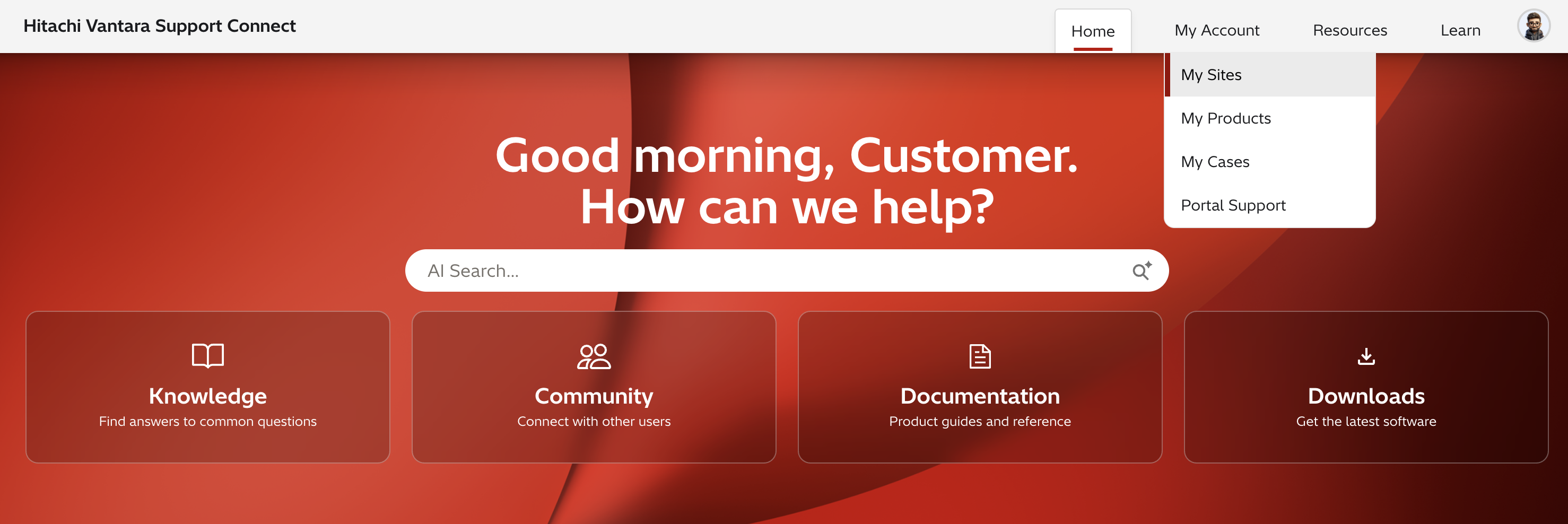
  2. Click on My Account and click on My Sites
    Image

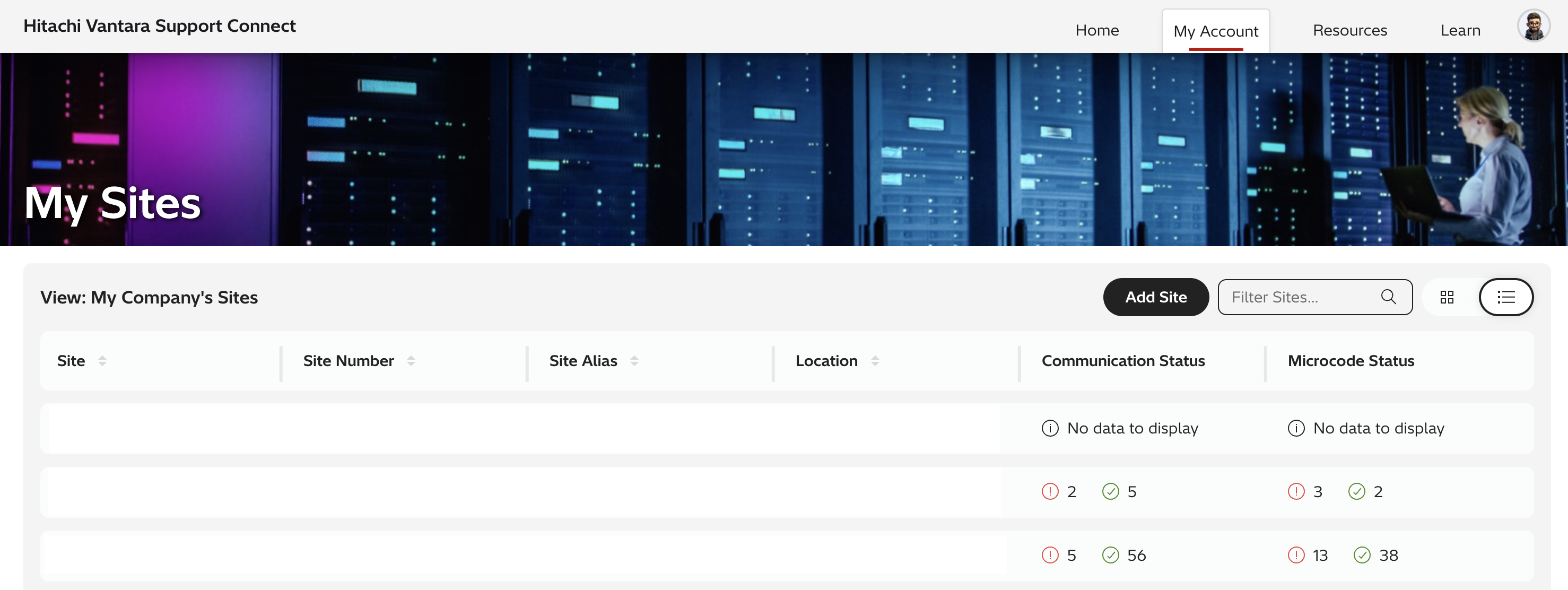
  3. Notice the name of the site is displayed in the far left SITE column, followed by the Site Number, Site Alias, and Site location. Communication and Microcode Status on the right. You are also able to Add Site and Filter Sites on the right. 
    Image


Additional Notes

My Sites displays a lists of sites that a user has registered for Support Access.

  • Select a Site to view products installed at that site.
  • Add a product if your product does not display and you purchased through a 3rd party.

To add additional sites, please reference How to Add Additional Sites on Support.

See How to Access My Products on Support for another way to view your products. 

For more information about Support, please see the following articles:

  • Support Overview
  • Support FAQ

CXOne Metadata

sites, 

Keywords: Add Site MySites raexternalrequest
Solution ID
242403050061047
Last Modified Date
06/09/2026 02:20:25 PM
Attributes
Page Privacy and Permission Assignment
  • Page Privacy: Private
  • Page Level Permissions: Anonymous; Employee; Service Partner; Customer; IT; eServices
  • Article: howto
  • Pagetype: knowledgearticle
Taxonomy
  • Support Information > Support Website
Collections
  • Customer

Solution to Copy:

Copy to Clipboard

Failed to download PDF file.

Problem creating pdf file for the solution: 242403050061047. Retry after some time.
Close

Acknowledged.

Thank you for acknowledging that you have read and understood this solution.

Failure.

Unable to acknowlege. An error occurred.
View More...
Knowledge
  • Knowledgebase
Helpful Links
  • Community
  • Product Documentation
Upland RightAnswers | Self Service - 2025R2.3-01-6c2ece7
© Sun Jun 21 09:44:27 EDT 2026 Upland Software, Inc. All Rights Reserved