How to Access My Sites on the Support Website
Content
Environment
Procedure
- Login to Support account. (requires registration)
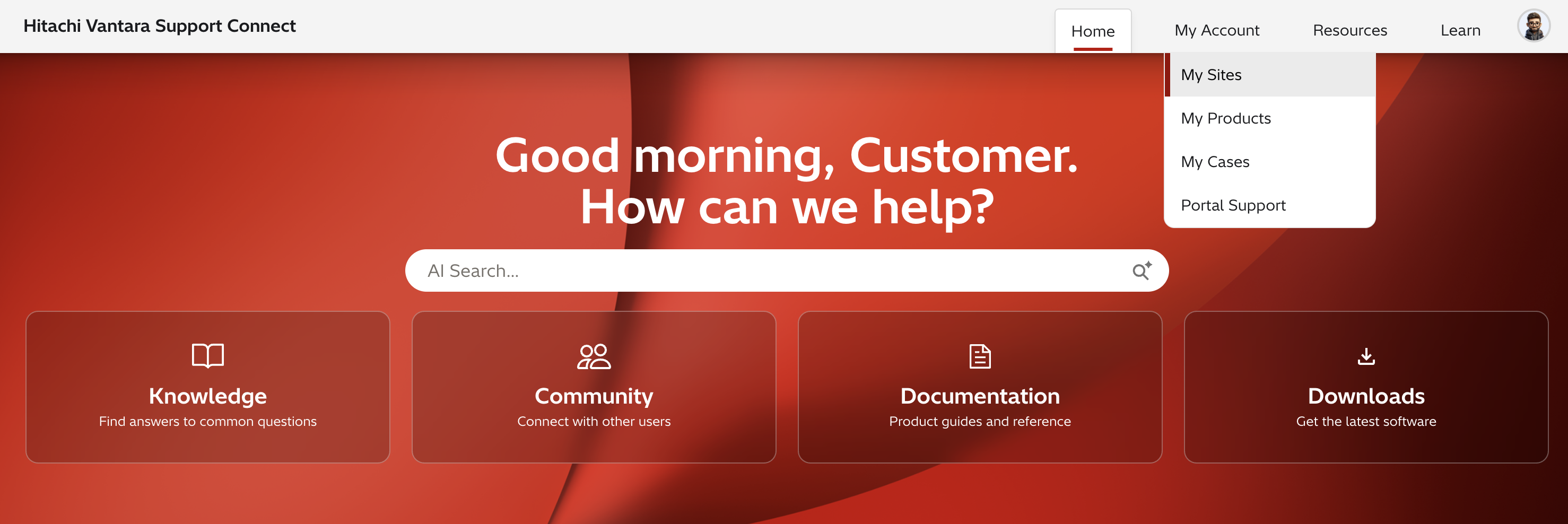
- Click on My Account and click on My Sites
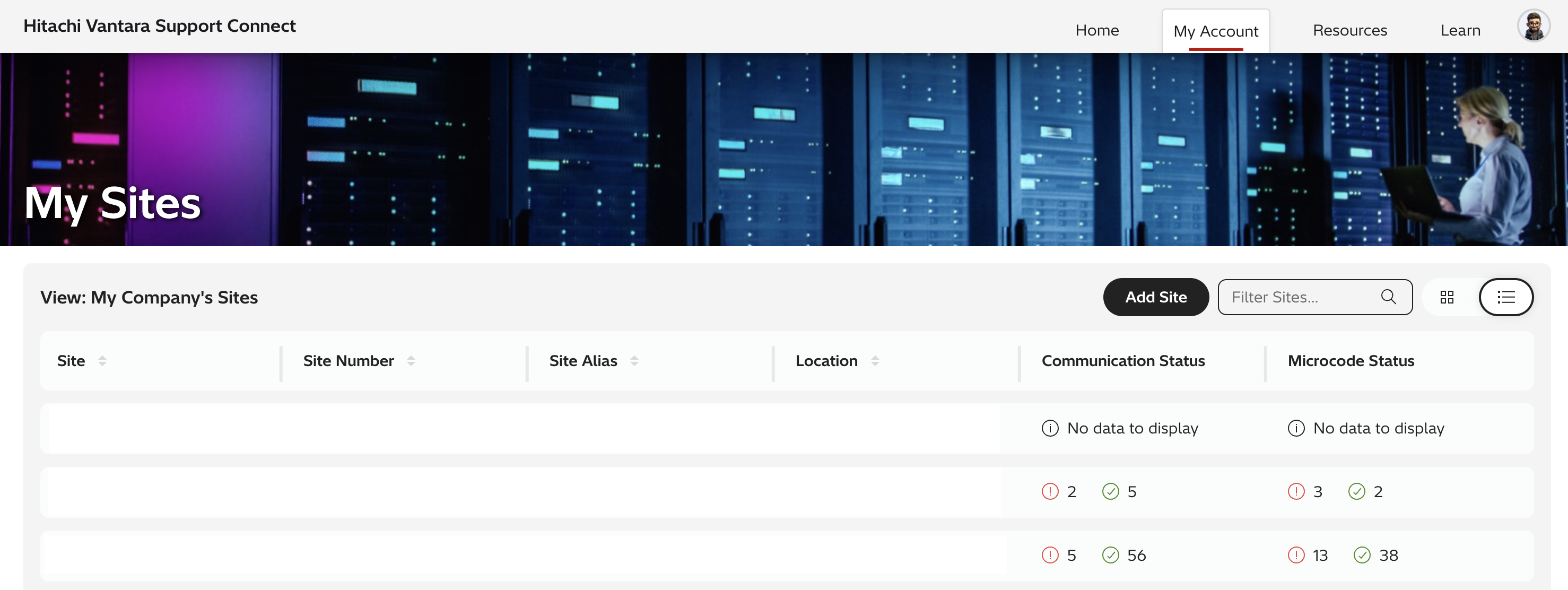
- Notice the name of the site is displayed in the far left SITE column, followed by the Site Number, Site Alias, and Site location. Communication and Microcode Status on the right. You are also able to Add Site and Filter Sites on the right.
Additional Notes
My Sites displays a lists of sites that a user has registered for Support Access.
- Select a Site to view products installed at that site.
- Add a product if your product does not display and you purchased through a 3rd party.
To add additional sites, please reference How to Add Additional Sites on Support.
See How to Access My Products on Support for another way to view your products.
For more information about Support, please see the following articles:
CXOne Metadata
sites,
Solution Properties
- Keywords
- Add Site MySites raexternalrequest
- Solution ID
- 242403050061047
- Last Modified Date
- 06/09/2026 02:20:25 PM
- Attributes
-
Page Privacy and Permission Assignment
- Page Privacy: Private
- Page Level Permissions: Anonymous; Employee; Service Partner; Customer; IT; eServices
- Article: howto
- Pagetype: knowledgearticle
- Taxonomy
- Collections
-
- Customer
- Views
- 0