
Skip to content
logo logoSelf Service
Sign In Sign Up
  • Home
  • Knowledgebase
Back

How to Create a New Case on the Support Website

Updated 06/09/2026 01:59:10 PM by hvuser
  • PDF
  • Print
  • Share
    • Facebook
  • Copy To Clipboard
  • Collapse All Expand All

Content

Objective

How to create a new Case on the Support Website. 

Environment

  • Support website

How to Create a Case 

The steps below only apply to Customer accounts. Partners and Employees should follow the steps listed in the articles under Additional Notes.

  1. Log into your Support website account (requires registration)
  2. Click on My Account in the top navigation and go to My Cases
    Image
  3. Click on New Case 
    Image
  4. The Case will be created in four steps: 
    1. Choose the category that best matches your request. Is it related to a product or the portal? 
      Image
    2. Choose your product name or serial number.
       Image
    3. Review any active cases related to the product 
      Image
    4. Select the issue category and fill out any additional information that might be needed. Review the suggested resources to see if they solve your issue. 
      Image
       
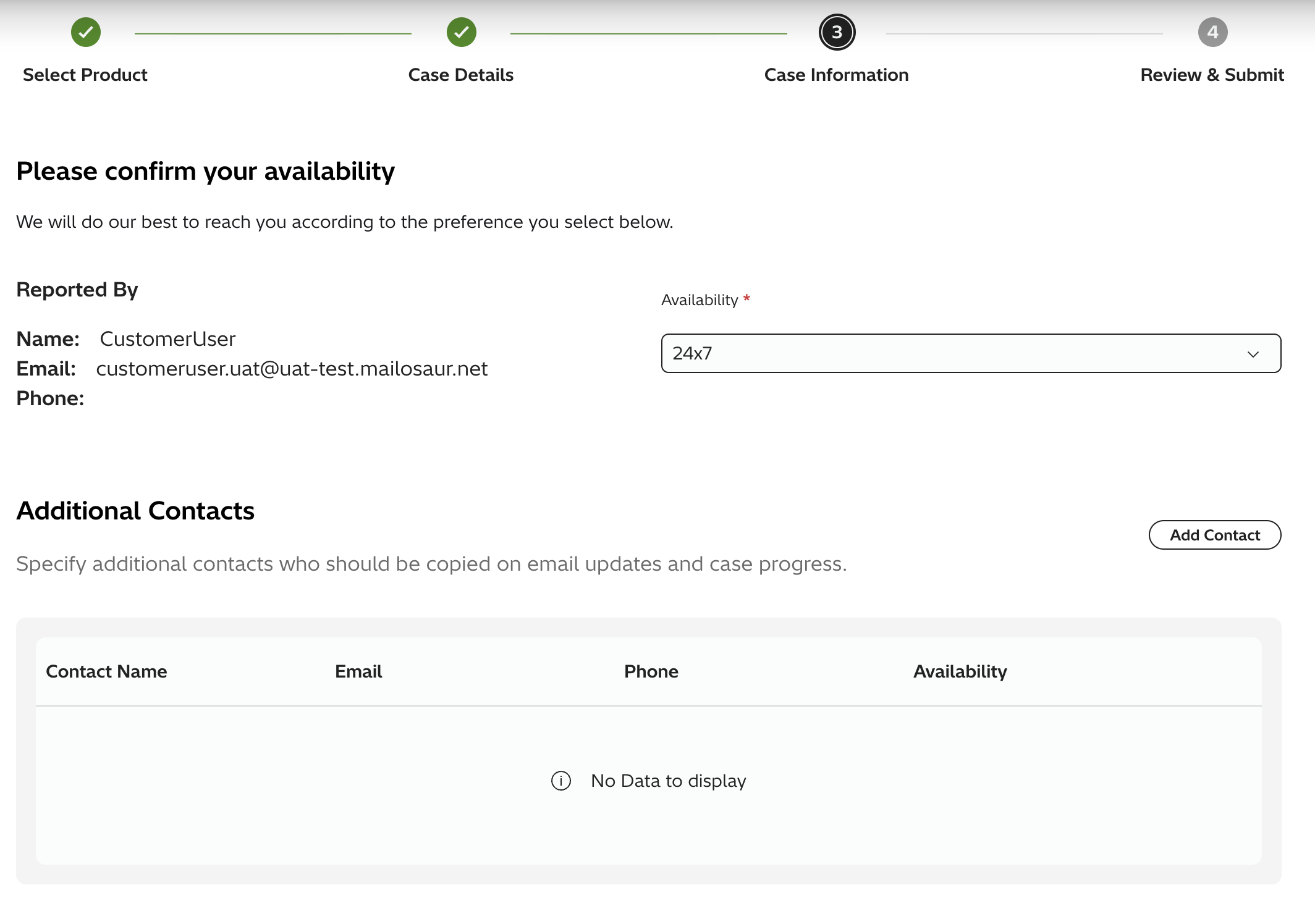
    5. Confirm your availibility and fill out any additional contact information
      Image

  5. Review the case details and submit your case. 
  6. Once you have submitted you can attach files or view your case details 
    Image
  7. You will be able to see any updates make on the case details page. You will also be able to close case if your issue has been resolved. 
    Image


Additional Notes

View more helpful articles on Triage Questions to help expedite your Case. 

For more information about the Support website, please see the following articles:

  • Support website Overview
  • Support website FAQ
  • How to Access Cases
Keywords: Case Create raexternalrequest

Related Solutions

  • Hitachi Content Platform Anywhere (HCP-AW) 4.4.5 and Later Allows Information Disclosure
  • How to Contact Hitachi Vantara Support
  • Cisco Support Questions
  • Certain mod_proxy Configurations on Versions of Apache HTTP Server Could Allow Unauthorized Access
  • IBM Tivoli Storage Manager TSM data collection for HPP
Solution ID
242403050021940
Last Modified Date
06/09/2026 01:59:10 PM
Attributes
Page Privacy and Permission Assignment
  • Page Privacy: Private
  • Page Level Permissions: Anonymous; Employee; Service Partner; Customer; Knowledge Author; Knowledge Editor; IT; eServices; Knowledge Draft
  • Article: howto
  • Pagetype: knowledgearticle
Taxonomy
  • Support Information > Support Website
Collections
  • Customer

Solution to Copy:

Copy to Clipboard

Failed to download PDF file.

Problem creating pdf file for the solution: 242403050021940. Retry after some time.
Close

Acknowledged.

Thank you for acknowledging that you have read and understood this solution.

Failure.

Unable to acknowlege. An error occurred.
View More...
Knowledge
  • Knowledgebase
Helpful Links
  • Community
  • Product Documentation
Upland RightAnswers | Self Service - 2025R2.3-01-6c2ece7
© Sun Jun 21 09:44:27 EDT 2026 Upland Software, Inc. All Rights Reserved